How to Set Path in Java
- The path is required to be set for using tools such as javac, java, etc.
- If you are saving the Java source file inside the JDK/bin directory, the path is not required to be set because all the tools will be available in the current directory.
- However, if you have your Java file outside the JDK/bin folder, it is necessary to set the path of JDK.
- There are two ways to set the path in Java:
- Temporary
- Permanent
How to set the Temporary Path of JDK in Windows
To set the temporary path of JDK, you need to follow the following steps:
- Open the command prompt
- Copy the path of the JDK/bin directory
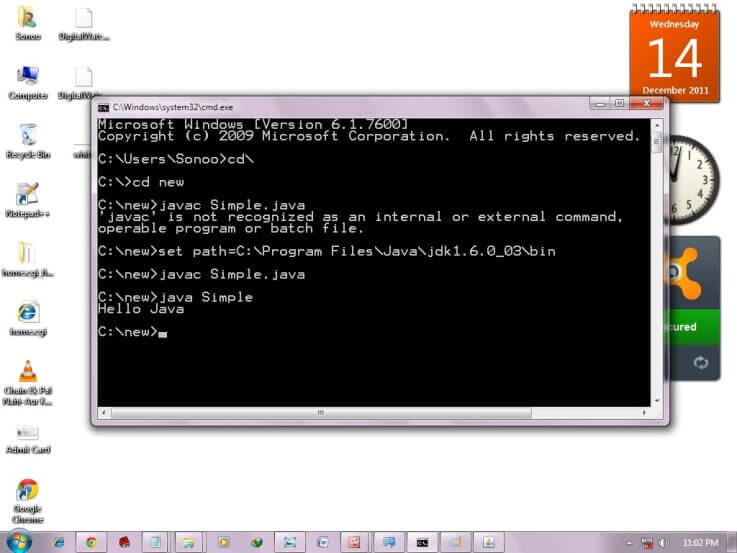
- Write in command prompt: set path=copied_path
For Example:
set path=C:\Program Files\Java\jdk1.6.0_23\bin
Let's see it in the figure given below:
How to set Permanent Path of JDK in Windows
For setting the permanent path of JDK, you need to follow these steps:
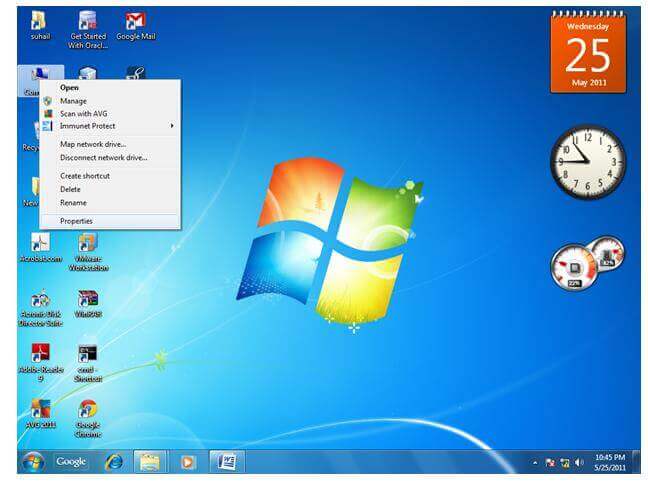
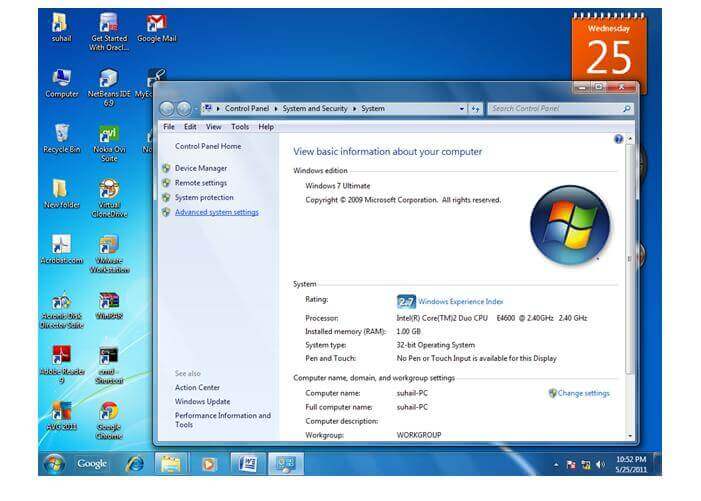
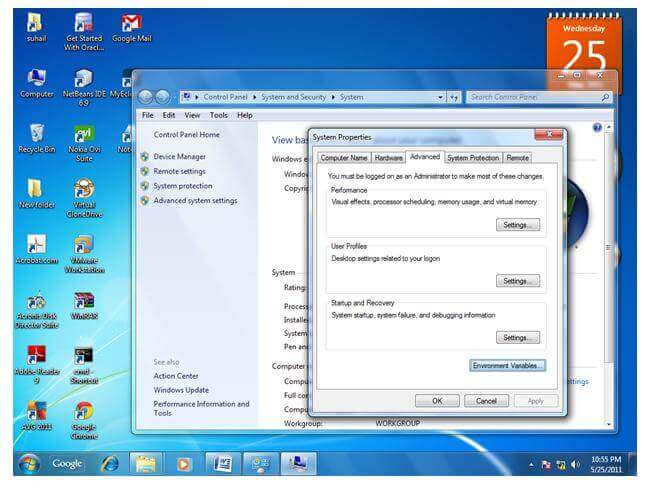
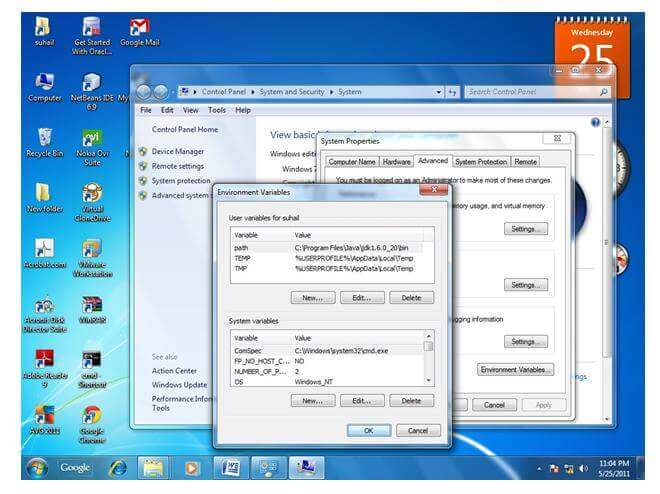
- Go to MyComputer properties -> advanced tab -> environment variables -> new tab of user variable -> write path in variable name -> write path of bin folder in variable value -> ok -> ok -> ok
For Example:
-
Go to MyComputer properties
-
Click on the advanced tab
-
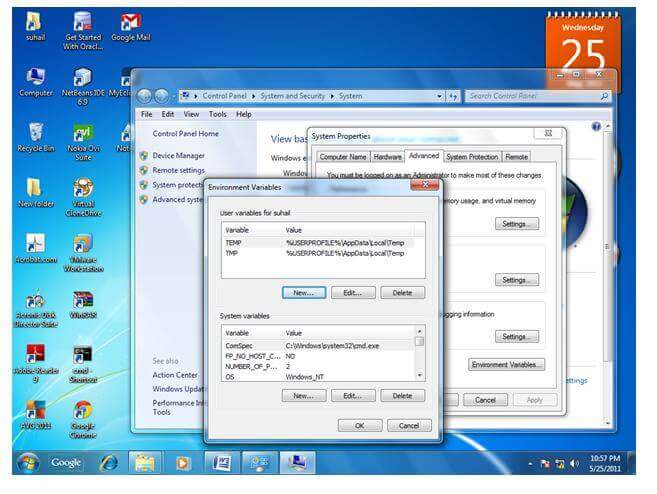
Click on environment variables
-
Click on the new tab of user variables
-
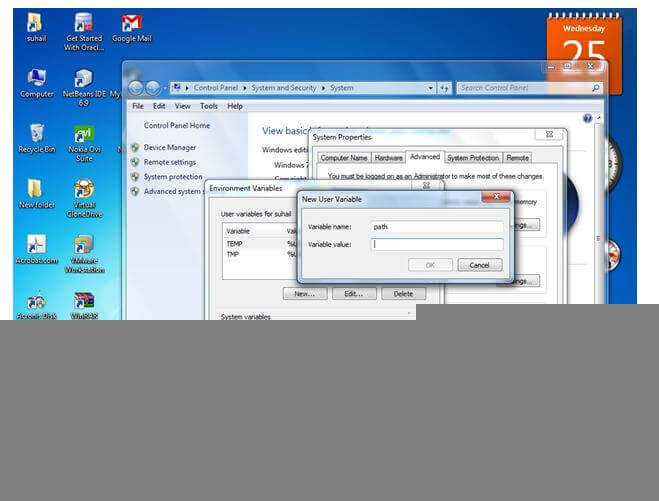
Write the path in the variable name
-
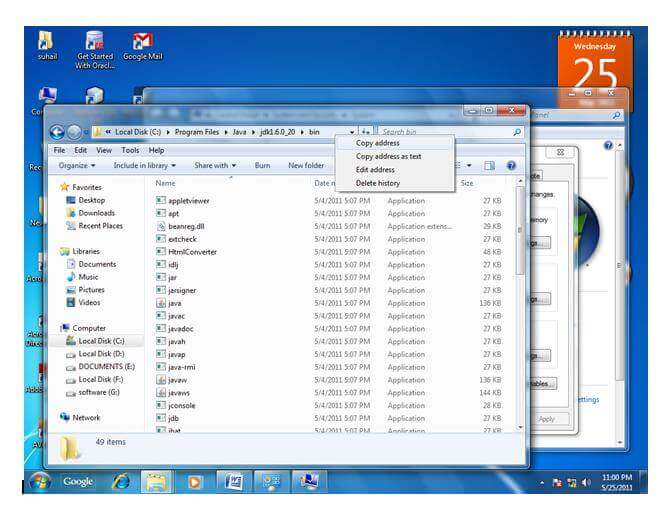
Copy the path of bin folder
-
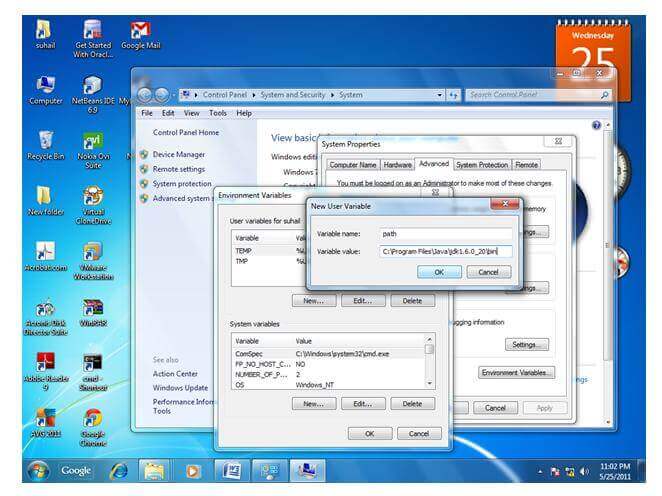
Paste path of bin folder in the variable value
-
Click on ok button
-
Click on ok button
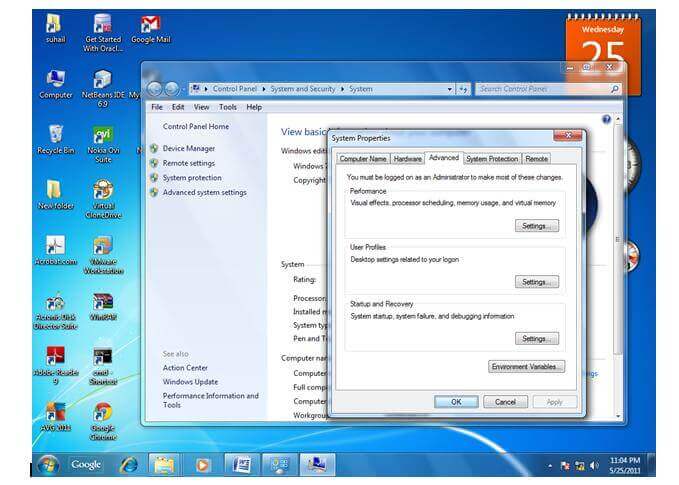
Now your permanent path is set. You can now execute any program of java from any drive.
Setting Java Path in Linux OS
Setting path in Linux OS is the same as setting the path in the Windows OS. But, here we use the export tool rather than set. Let's see how to set path in Linux OS:
export PATH=$PATH:/home/jdk1.6.01/bin/